From phone to kitchen
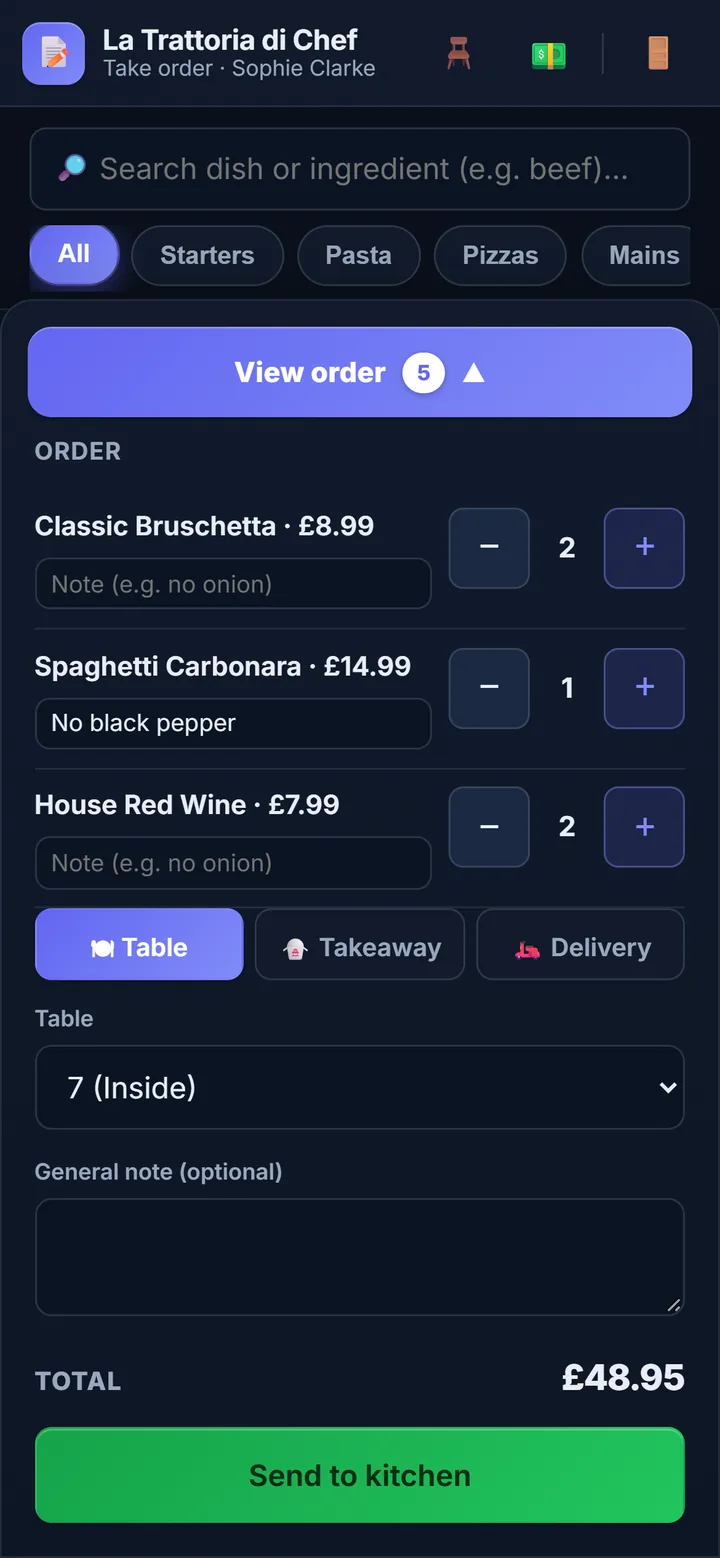
Servers add a note such as ‘no onions’, tap ‘Send to kitchen’ and the ticket appears on screen in seconds.
A kitchen display system (KDS) replaces paper tickets with a screen: servers take the order on their phone, it reaches the kitchen in seconds, sorted by status with a timer on every ticket, and the server is alerted when it’s ready. ElMenu is a browser-based kitchen display system for UK restaurants, cafés and pubs: it comes with the Professional plan at £29.99 + VAT a month (£35.99 with VAT), together with a floor plan and a restaurant till, with no per-screen or per-user fee and no commission on sales. It needs an internet connection and does not take card payments.
Professional plan: £29.99 + VAT a month · 14 days free, no card needed · no lock-in
Quick overview
It runs in the browser on the phones, tablets and laptops you already have, over an internet connection.
Servers add a note such as ‘no onions’, tap ‘Send to kitchen’ and the ticket appears on screen in seconds.
Columns by status, and tickets that turn yellow after 12 minutes and red after 20 (you set the times).
Included in Professional: all the staff and screens you need, with no commission on sales.
It’s the digital route an order takes between the table and the kitchen. The order is keyed in once, the kitchen sees it on a screen and the whole team knows where every table is up to, with no handwriting to decipher. Still deciding? We compare both options in paper tickets vs a kitchen display.
Yes. ElMenu doesn’t sit on top of another till system and doesn’t need one: your staff key the order into ElMenu on their phones and it goes straight to the kitchen screen. It doesn’t connect to an EPOS you already have, so orders rung up on another till won’t appear on it.
Payments, tips and cashing up are covered on our restaurant till system page. The server’s side, step by step, is on the waiter ordering app page.
One ticket per order, in three columns: New, In progress and Ready. Each ticket shows the order number for the day, a timer since it came in, where it’s going (a table, takeaway or delivery), who took it and every dish with its quantity and notes; if you switch it on, each dish’s ingredients and preparation notes too.
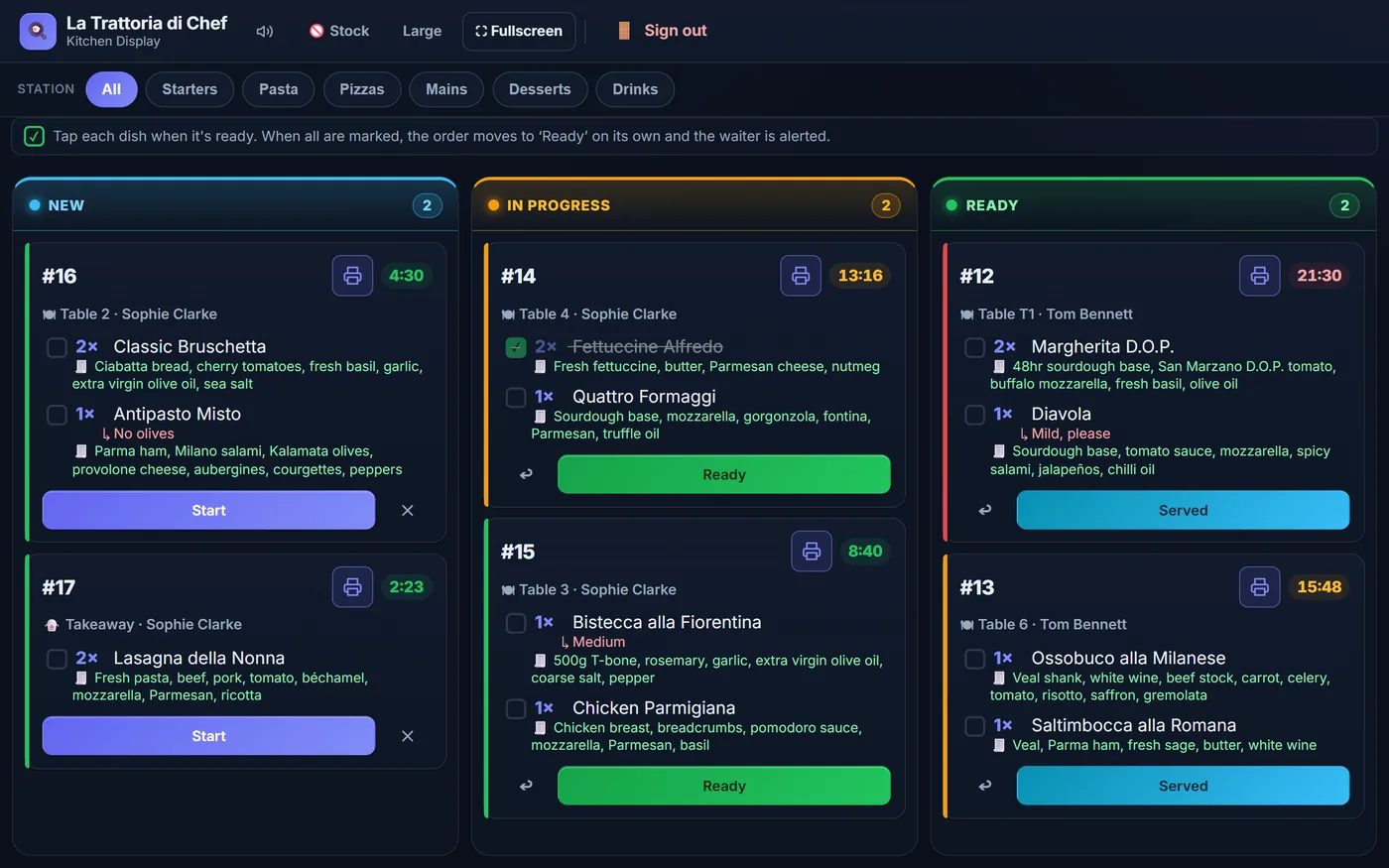
A ticket turns yellow once it passes the ‘delayed’ time (12 minutes by default) and red at the ‘very delayed’ time (20 minutes), with an urgent alert. You can change both in the dashboard.
With more than one station, each screen can show only certain menu categories: drinks at the bar, food in the kitchen. Any ticket can also be printed in a narrow receipt format.
You create tables in the dashboard, with optional zones (Dining room, Terrace). On the server’s phone, each table shows its status, orders in progress and balance to pay.
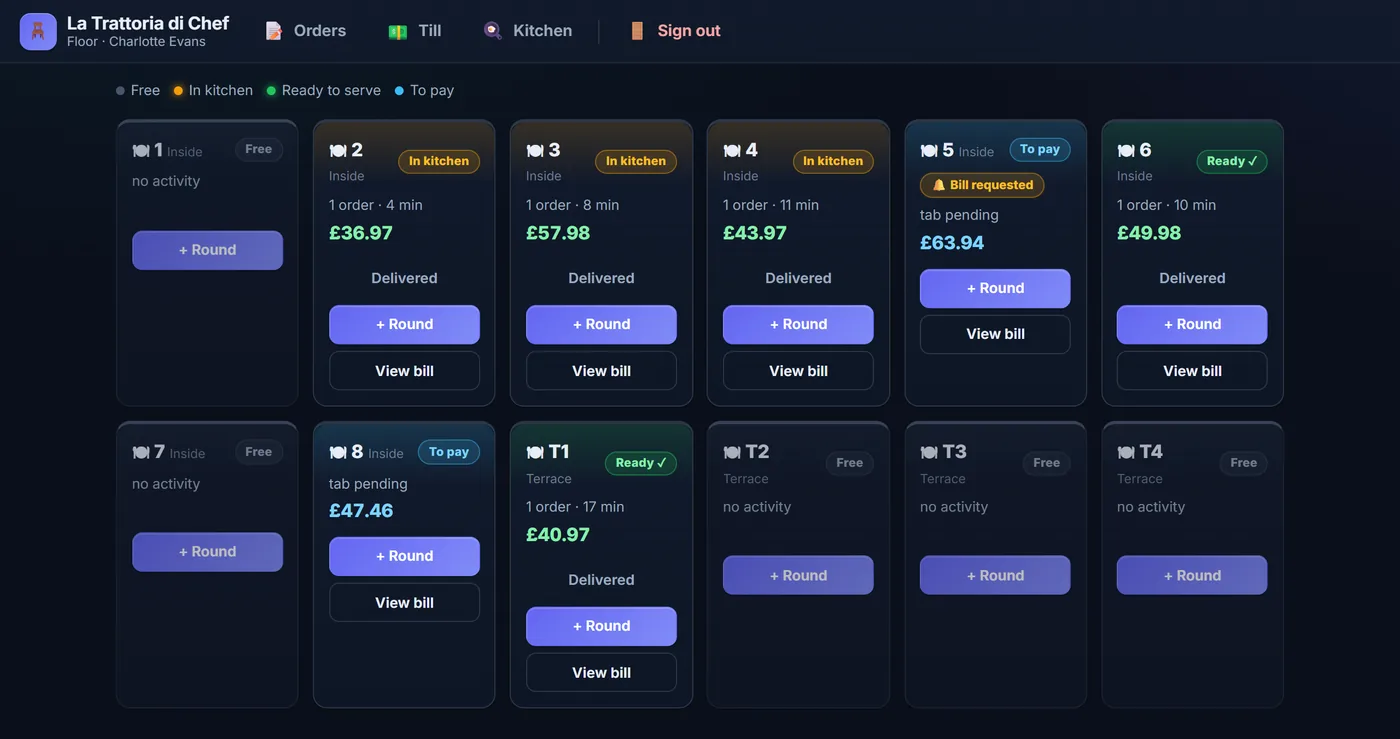
| Status | What it means |
|---|---|
| Free | No orders and nothing left to pay. |
| In kitchen | An order is new or being prepared. |
| Ready to serve | The kitchen has marked a round as ready. |
| To pay | Everything served, with a balance to pay. |
| Bill requested | A bell on the table: they’ve asked for the bill. |
Only a manager can close a table without charging, and they must type the reason: it goes into the audit log with their name.
Everyone gets their own six-digit PIN. They open the team link on their phone or on the kitchen tablet and go straight to the screen for their role.
| Role | What they see |
|---|---|
| Waiter | Order taking and the floor plan. Can also take payment unless you turn it off. |
| Kitchen | The kitchen display. |
| Cashier | The till: payments, voids and cash-up. |
| Manager | Everything, including closing a table without charging. |
When someone leaves, you delete them and they lose access straight away, even if they’re still signed in.
Before your first service, run a test order from start to finish and keep a notepad handy in case the internet drops.
There is more on each on our pages about a QR code menu and till for cafés and a QR code menu for pubs.
The kitchen display comes with the Professional plan (and Premium), together with the till, the floor plan and the reports. It isn’t included in Starter.
| Item | With ElMenu |
|---|---|
| Professional plan | £29.99 + VAT a month (£35.99 inc. VAT) |
| Screens and staff | Unlimited, at no extra cost |
| Commission on sales | None |
| Free trial | 14 days, no card needed; nothing is charged automatically when it ends |
| Six-monthly or annual billing | Pay for 5 months out of 6, or 10 out of 12 |
Some systems charge per screen, per user or a percentage of every sale; with ElMenu you pay for the plan, whether you have two servers or twenty. See pricing and all the features.
FAQ
Short, direct answers to common questions.
No. They open the team link in their phone’s browser and sign in with their PIN. If they like, they can add it to their home screen like an app.
No. The kitchen uses a tablet, a laptop or a computer with a browser, and a printer is optional.
Screens stop receiving tickets until the connection is back. Stable Wi-Fi matters, and a notepad is a sensible backup.
Not with the plans: the QR code opens your digital menu to browse, and your staff take the order on their phones.
Yes: Professional has a 14-day free trial, no card needed, with the kitchen display and till included. Nothing is charged when it ends; to carry on, you pay by card from the dashboard.
It depends on how the supplier charges: per screen, per site or as part of an EPOS subscription, plus the screens themselves. ElMenu charges per plan: Professional is £29.99 + VAT a month (£35.99 inc. VAT) for as many screens and staff as you need, on devices you already own.
Set up a Professional account, add your menu and send your first test order. 14 days free, no card needed, nothing charged automatically.